Free · v0.1.1

日本語マスター

Learn Japanese.
On your terms.

A free, 100% offline app for mastering Japanese from N5 to N1. Real AI voices, FSRS spaced repetition, stroke-order animations — all running locally on your device. No account. No subscription. Ever.

100% Offline No Account No Subscription No Telemetry ~30 MB
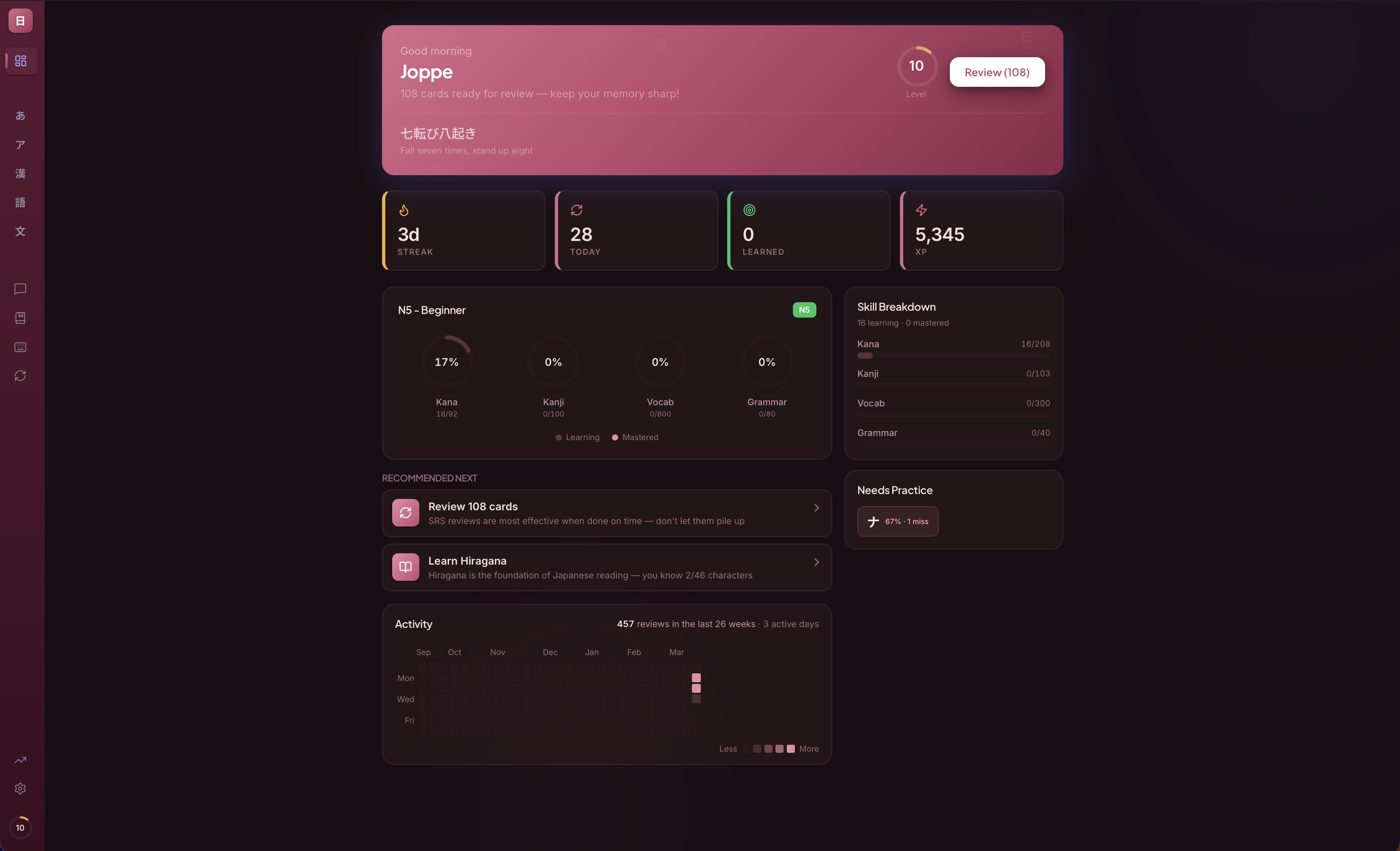
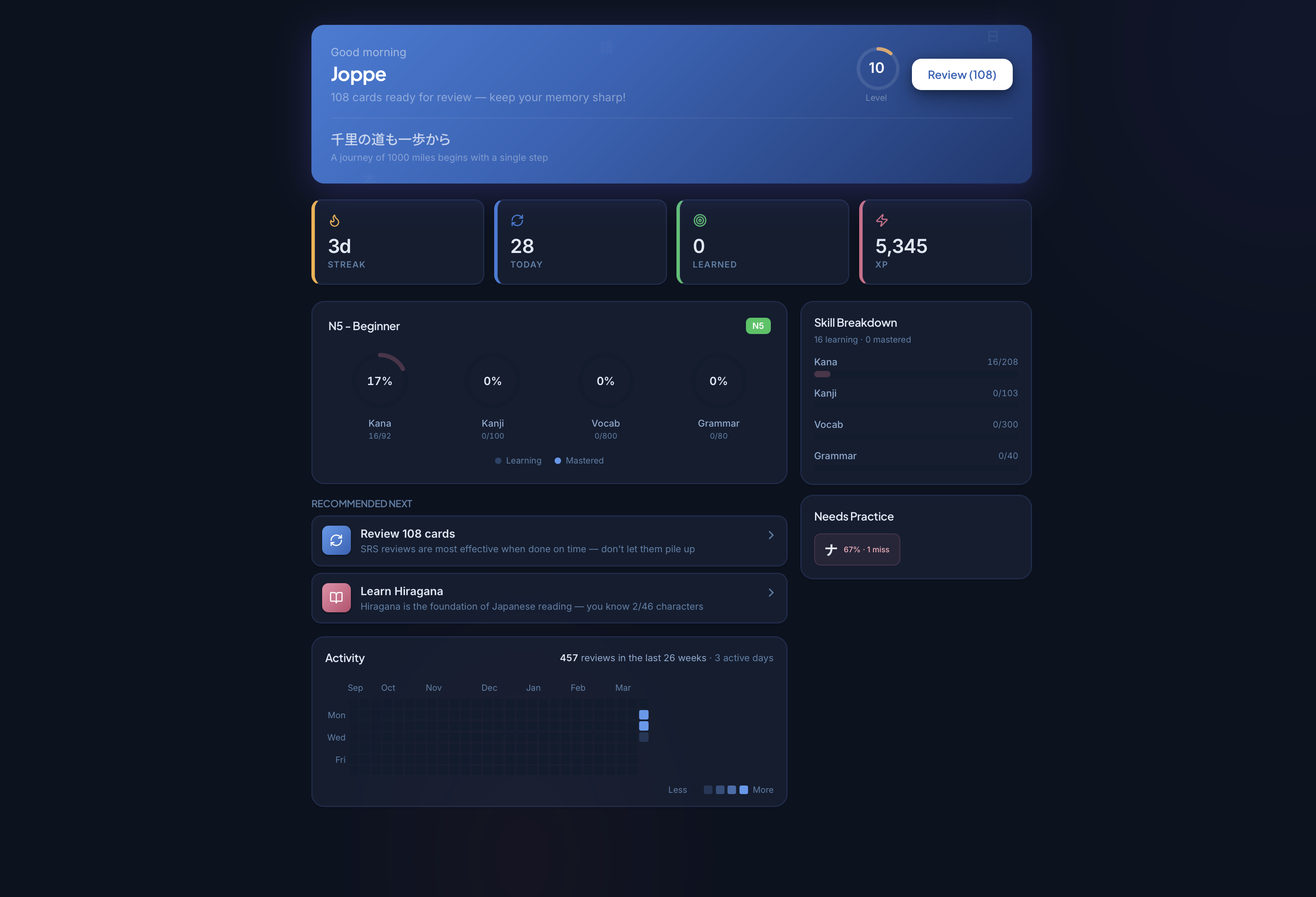
NihongoMaster dashboard screenshot
安全にインストール

Your OS will warn you.
Here's exactly what to do.

NihongoMaster is safe to install. On macOS and iOS you can install directly from the App Store. On Windows and Linux, because the app isn't signed with a paid Microsoft certificate, a security prompt may appear — this is normal for independent software. Follow the steps below for your platform.

macOS — Normal Installation

Universal binary — runs on both Intel and Apple Silicon Macs

1

Open the .dmg installer

Double-click the downloaded NihongoMaster_*_universal.dmg file in your Downloads folder to mount it.

2

Drag to Applications

In the window that opens, drag the NihongoMaster icon into the Applications folder shortcut.

3

Eject the disk image

Right-click the mounted disk image on your Desktop and choose Eject. Then open NihongoMaster from Launchpad or Spotlight.

4

macOS asks "Are you sure?"

Gatekeeper will show a warning on first launch because the app isn't notarized with Apple yet. See the scenarios below to proceed in 30 seconds.

"NihongoMaster can't be opened because Apple cannot verify it" Most common

Option A — Via System Settings (recommended):

  1. Click Cancel (or OK) to dismiss the popup
  2. Open System SettingsPrivacy & Security
  3. Scroll down — you'll see "NihongoMaster was blocked from use"
  4. Click Open Anyway → enter your Mac password → Open

Option B — Right-click bypass (faster):

  1. In Finder, navigate to Applications
  2. Right-click (or Control+click) NihongoMaster
  3. Choose Open from the context menu
  4. Click Open in the dialog — you only need to do this once
"NihongoMaster is damaged and can't be opened" Older macOS / quarantine flag

This happens because macOS applied a quarantine flag to the downloaded file. It's a false positive — run this one command in Terminal to remove it:

$ xattr -cr /Applications/NihongoMaster.app

Open Terminal (Spotlight → type "Terminal"), paste the command, press Return, then try opening the app again.

If the app isn't in /Applications yet, replace the path with wherever NihongoMaster is located.

Alternative: use spctl to permanently approve Advanced

Permanently adds the app to macOS's allowlist via Terminal:

$ sudo spctl --add /Applications/NihongoMaster.app
Why does this happen? Apple requires developers to pay for a notarization certificate ($99/year). NihongoMaster is a free, independent app — this cost hasn't been covered yet for direct downloads. You can always install safely via the Mac App Store instead.

Windows — SmartScreen Bypass

Windows 10 & 11 (64-bit) · NSIS installer (.exe)

1

Run the installer

Double-click the downloaded NihongoMaster_*_x64-setup.exe file from your Downloads folder.

2

SmartScreen appears — click "More info"

Windows Defender SmartScreen will show a blue dialog: "Windows protected your PC." This is expected. Click "More info" in the lower-left area of the dialog — a new button will appear.

3

Click "Run anyway"

After clicking More info, a "Run anyway" button appears at the bottom right. Click it to proceed.

4

Follow the installation wizard

Click through the standard installer. NihongoMaster will appear in your Start Menu and optionally on your Desktop when done.

"Windows protected your PC" — no "More info" link visible Strict policy

Some corporate or managed Windows machines have SmartScreen set to block without a bypass option. You have a few alternatives:

  1. Try the .msi installer instead — also available on the releases page
  2. Ask your IT admin to add an exception for the app
  3. Try right-clicking the .exe → Properties → check "Unblock" at the bottom → Apply → run the installer again
Windows Defender flagged it as a threat False positive

Rarely, Defender's heuristics flag unsigned Tauri/Rust installers as suspicious. This is a false positive. To resolve:

  1. Open Windows SecurityVirus & threat protection
  2. Click Protection history
  3. Find the NihongoMaster entry → click ActionsAllow on device
  4. Re-run the installer

You can also temporarily disable real-time protection, install, then re-enable it — though allowing via Protection history is safer.

Unblock via PowerShell (advanced) One-liner

Removes the NTFS "Zone.Identifier" that SmartScreen uses to flag downloads. Run in PowerShell:

PS> Unblock-File -Path "$env:USERPROFILE\Downloads\NihongoMaster_*_x64-setup.exe"

Then run the installer — SmartScreen won't appear.

Why does SmartScreen appear? Microsoft SmartScreen uses "reputation" — apps without enough download history or a paid Extended Validation (EV) certificate are flagged automatically. EV certificates cost $300–$500/year. As more people download and install NihongoMaster, the warning will go away naturally.

Linux — AppImage, .deb, Flatpak & .rpm

No system-level security warnings — just needs execute permission

Linux doesn't show security dialogs for unsigned apps. Choose the format that suits your distro:

AppImage — any distro, no install needed Recommended

Option A — GUI (right-click):

  1. Right-click the downloaded NihongoMaster_*.AppImage
  2. Select PropertiesPermissions
  3. Check "Allow executing file as program" → Close
  4. Double-click the file to launch

Option B — Terminal (one command):

$ chmod +x NihongoMaster_*.AppImage && ./NihongoMaster_*.AppImage

The AppImage is fully self-contained — no installation or root access required. Move it anywhere you like.

.deb — Debian, Ubuntu, Mint and derivatives Installs system-wide

Option A — GUI: Double-click the .deb file. Your software center (GNOME Software, Discover, or GDebi) will open and handle the install.

Option B — Terminal:

$ sudo dpkg -i nihongo-master_*.deb

After installing, launch from your application menu or by running nihongo-master in a terminal.

If dpkg reports missing dependencies, run: sudo apt-get install -f

.rpm — Fedora, RHEL, openSUSE Also available
$ sudo rpm -i NihongoMaster_*.rpm

Or use your distro's package manager: sudo dnf install nihongo-master_*.rpm (Fedora) / sudo zypper install nihongo-master_*.rpm (openSUSE)

Flatpak — Arch, Fedora, any distro with Flatpak Sandboxed

Install the Flatpak bundle:

$ flatpak install --user NihongoMaster_*.flatpak

Run:

$ flatpak run com.nihongomaster.app

Recommended for Arch Linux and rolling-release distros where AppImage may have compatibility issues. Requires flatpak installed on your system.

To update, download the new .flatpak from the releases page and run the install command again.

Good news: Linux has no Gatekeeper or SmartScreen equivalent for desktop apps. The only requirement is marking the AppImage as executable — and that's it.

Android — Install from APK

Sideload the APK — no Play Store required

1

Download the APK

Tap the download button above or visit the releases page and download the .apk file.

2

Allow installation from unknown sources

When you tap the downloaded APK, Android will prompt you to allow installs from your browser or file manager. Tap Settings and enable "Allow from this source", then go back.

3

Install and open

Tap Install on the confirmation screen. Once installed, tap Open to launch NihongoMaster.

Why sideload? NihongoMaster is also available on the Google Play Store. The APK is signed and safe to install directly if you prefer.
機能

Everything you need
to master Japanese

From your first hiragana to advanced N1 grammar — every feature runs completely offline, with no ads, no paywalls, and no tracking.

📖

Learn

Guided lessons for all 206 kana with stroke animations, 1,000+ kanji with KanjiVG stroke order, 2,800+ vocabulary words grouped by theme, and 195+ grammar patterns with formation rules.

Kana Kanji N5–N2 Vocabulary Grammar Stroke animations

Practice

Six exercise types: drag-and-drop sentence building, fill-in-the-blank particle drills, verb conjugation, error correction, timed matching pairs, and multi-turn dialogue completion across 35+ real-world scenarios.

Sentence Builder Conjugation Drill Error Correction Dialogue
📚

Read & Type

Mini reading stories using only grammar you know, with furigana toggle and sentence-by-sentence VOICEVOX audio. Romaji speed test and Japanese IME typing practice with custom word lists.

Reading Stories Comprehension Quiz IME Typing Furigana toggle
📊

Track

FSRS spaced repetition — the same algorithm as Anki's latest scheduler — implemented natively in Rust. Activity heatmap, XP across 30 levels, 15 unlockable achievements, streak tracking, and daily goals.

FSRS SRS Activity Heatmap Achievements Streak
比較

How it compares

NihongoMaster vs the apps you've already heard of.

Feature NihongoMaster Duolingo WaniKani Anki
Works 100% offline Partial
Native AI voices (VOICEVOX)
FSRS spaced repetition Custom SRS Plugin
Kanji stroke-order animation
Sentence building exercises
Japanese IME typing practice
Reading stories
No account required
No telemetry or tracking
Full data export / import
Native desktop performance (Rust) Partial
App size ~30 MB ~150 MB Web ~100 MB
Price Free $84 / yr $99 / yr Free
テーマ

7 themes, all Japanese-inspired

Switch themes instantly — backgrounds, text, borders, glows, and scrollbars all change with a 500ms transition.

Light
ライト
Dark
ダーク · 宵の集中
Sakura
桜 · Cherry Blossom
Matcha
抹茶 · Tea Ceremony
Fuji
藤 · Wisteria
Momiji
紅葉 · Autumn Maple
System
システム · Follows OS
スクリーンショット

See it in action

Click any screenshot to enlarge.

Dashboard
Dashboard & Study Guide
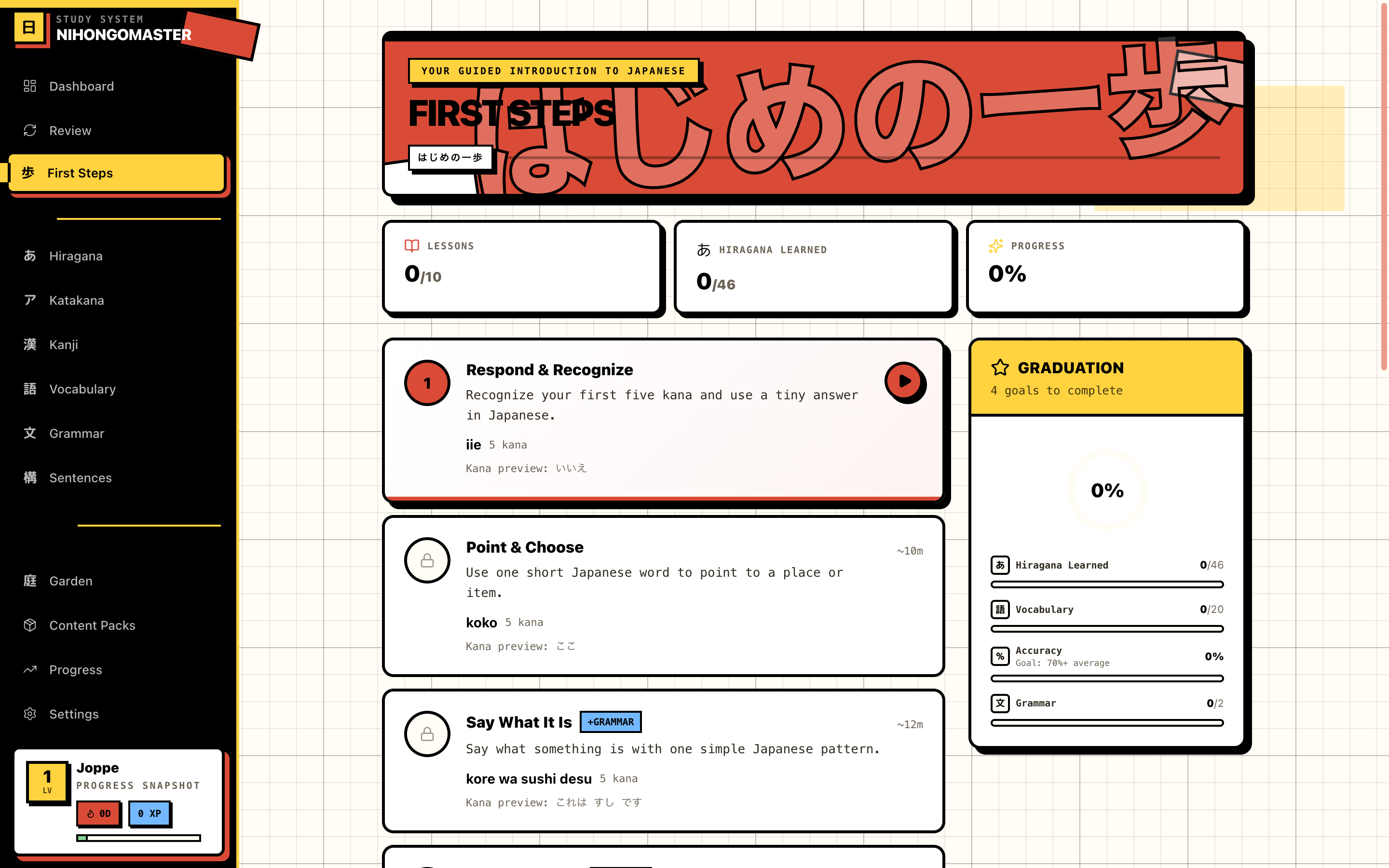
First Steps journey
First Steps — Guided Journey
Kanji
Kanji — Stroke Animations & Quizzes
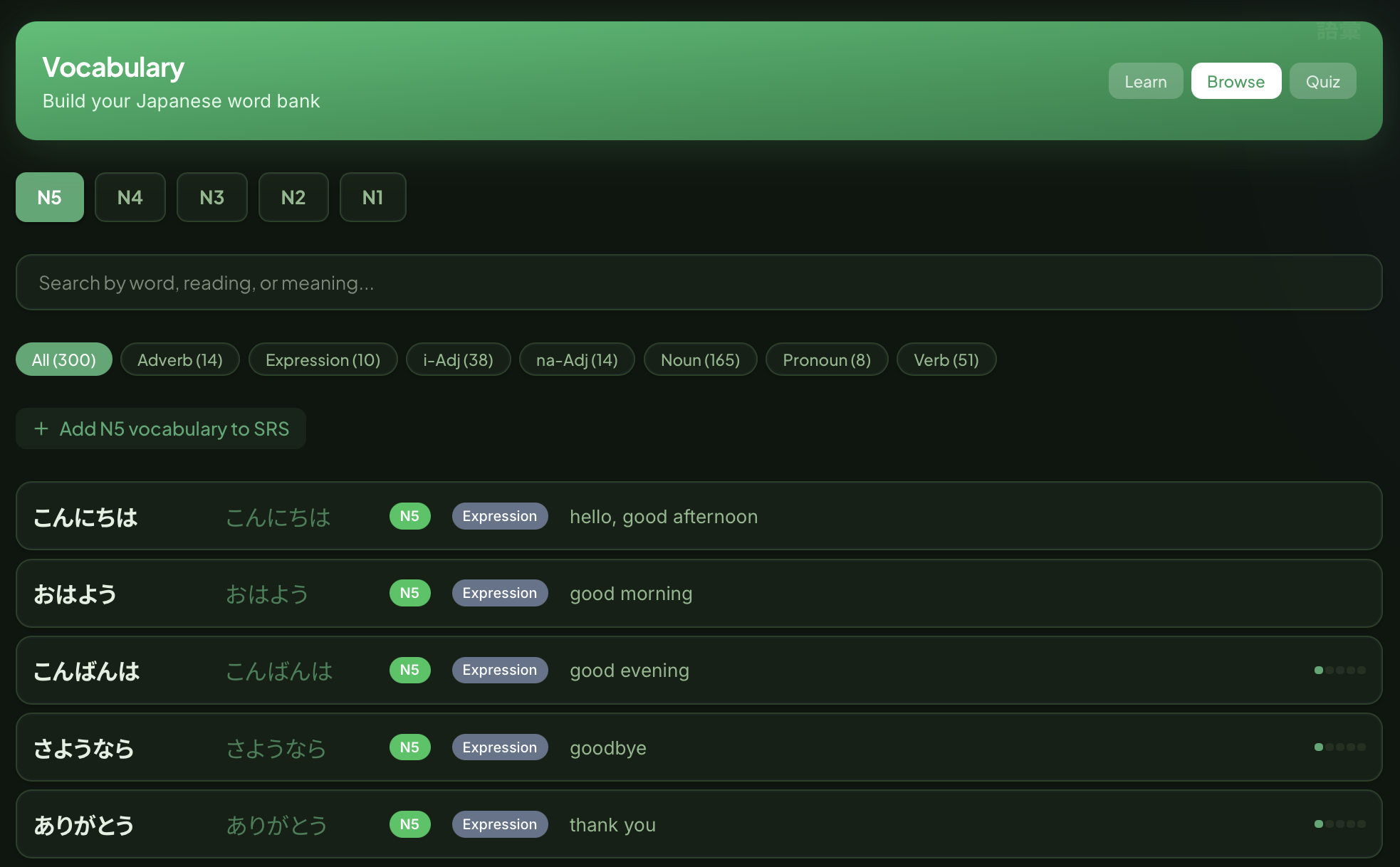
Vocabulary
Vocabulary — 3,800+ Words
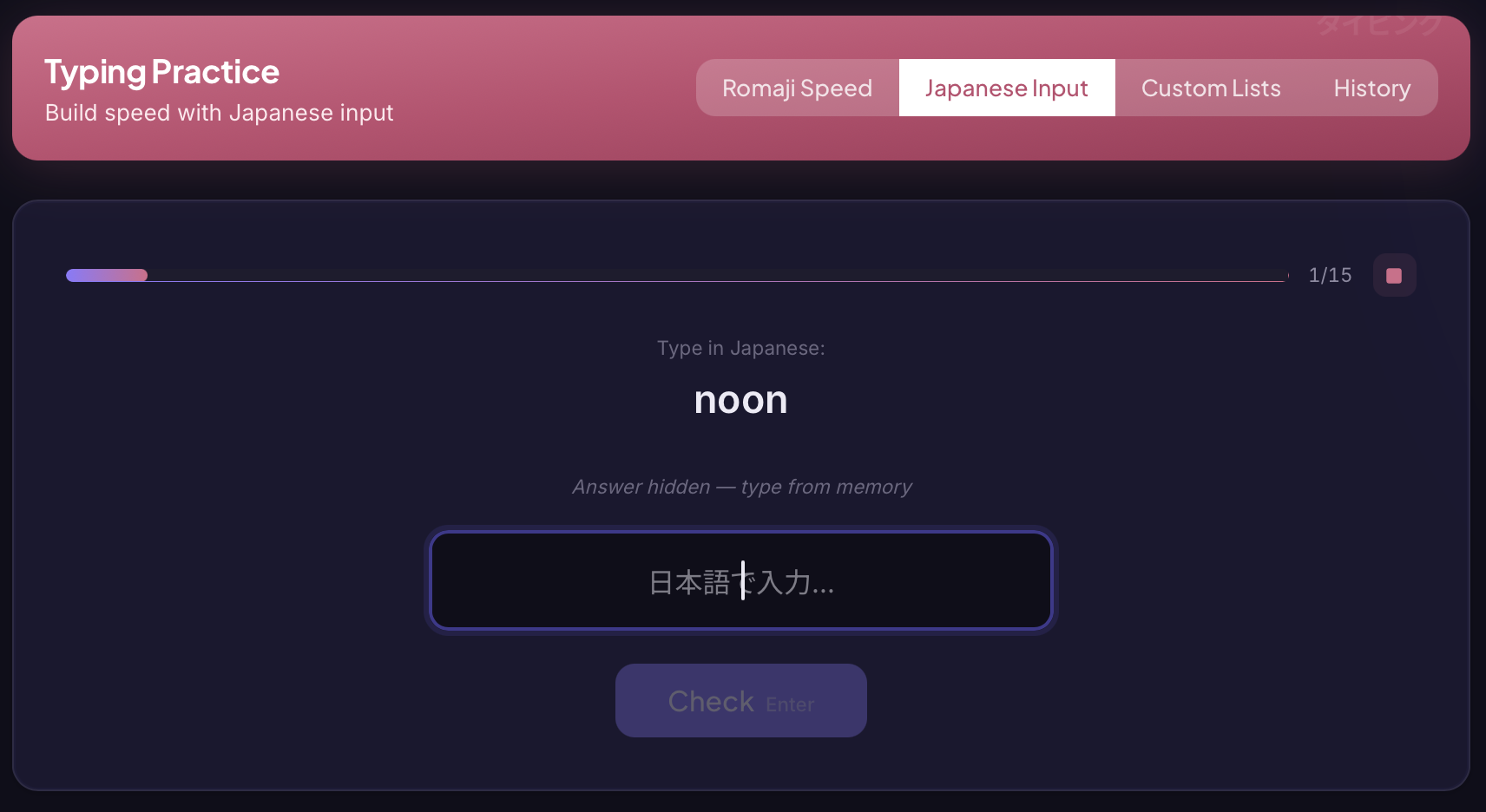
Typing practice
IME & Romaji Typing Practice
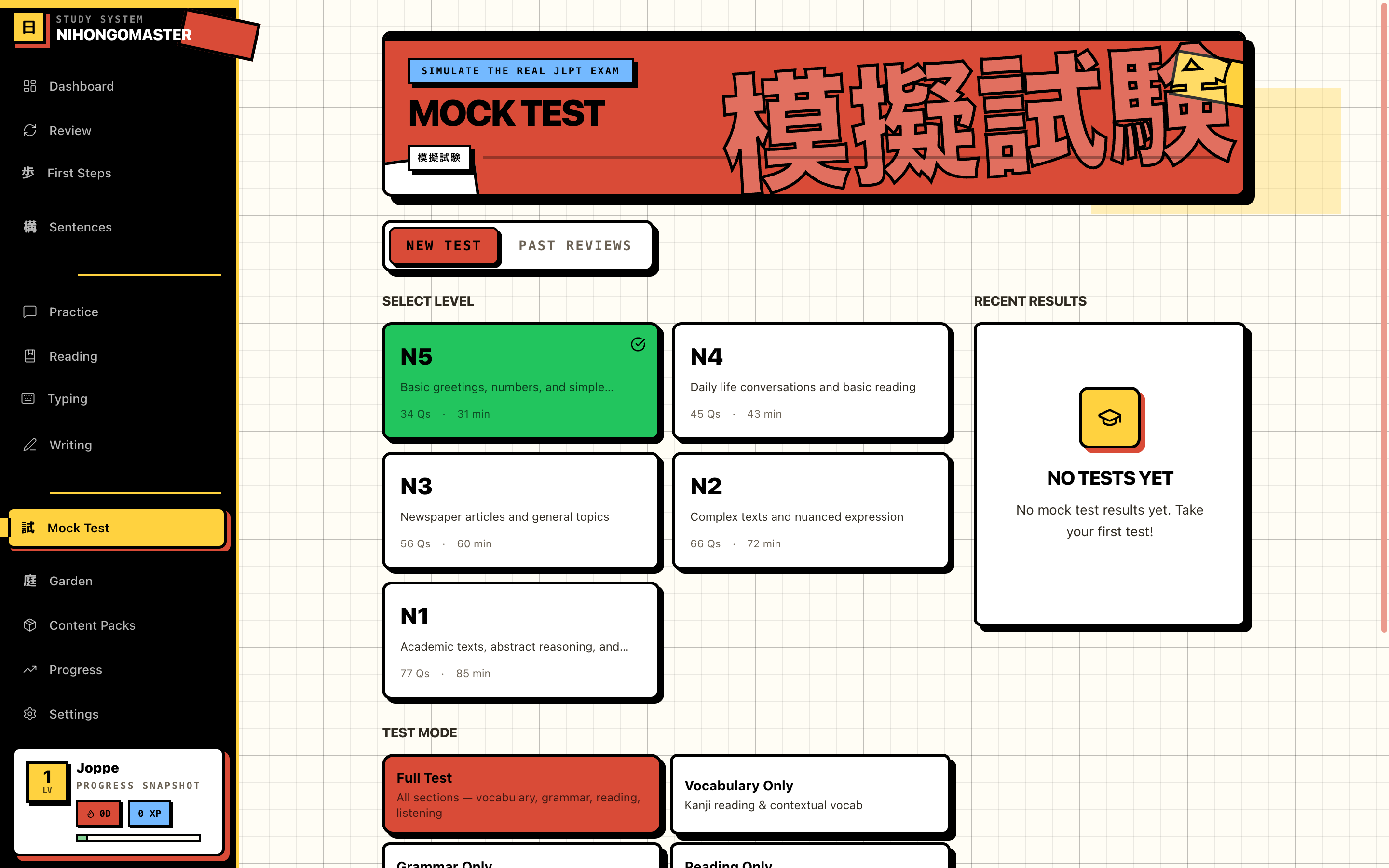
JLPT Mock Test
JLPT Mock Test — N5 to N1
JLPT

N5 through N1 — all bundled in the app

All content is included at install time. No downloads, no DLC, no internet required.

Complete
N5
104 Kanji
600+ Vocabulary
41 Grammar
Complete
N4
200+ Kanji
700+ Vocabulary
57 Grammar
Complete
N3
300+ Kanji
1,000+ Vocabulary
60+ Grammar
Complete
N2
400+ Kanji
700+ Vocabulary
42+ Grammar
Complete
N1
800+ Kanji
3,000+ Vocabulary
200+ Grammar